



Silence After the Storm: How to Tame Advertising on Android
Your device tirelessly aspires to become a mobile billboard. It knows what you searched for last night, smirks at your futile attempts to close yet another banner, and remains convinced that you urgently need an industrial crane. Digital in...

Author
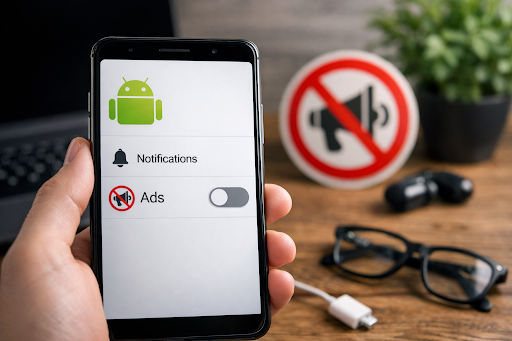
Your device tirelessly aspires to become a mobile billboard. It knows what you searched for last night, smirks at your futile attempts to close yet another banner, and remains convinced that you urgently need an industrial crane. Digital intrusiveness has become the ambient noise of modern life. But what if that noise could be muted? We make no promises that advertising will vanish entirely — it is woven into the very fabric of Android. Yet it can be subdued to a tolerable whisper, transforming your phone from an overzealous salesperson into a neutral instrument.
No superuser privileges, occult rituals, or moral compromises are required. All you need are your fingers, ten minutes of time, and a resolute desire to reclaim your attention. Let the siege commence.
Striking the Command Center: System Privacy Settings
Advertising in Android resembles a weed. Plucking its leaves — closing pop-ups — is pointless. One must reach the root, which lies deep within the settings along the path:
Settings → Google → All Services → Privacy & Security → Ads.
Here resides your Advertising ID — a digital label by which ad networks trace your movements. It can be reset, much like changing an invisibility cloak in the midst of a chase. A more radical action is to enable “Opt out of Ads Personalization.” Afterward, the system’s list of your “interests” will display something akin to “Advertising ID Reset” accompanied by meaningless digits.
A paradox, however: this setting does not reduce the quantity of advertising. It merely strips it of its intimacy. Instead of being persistently urged to purchase that very sofa you inspected five minutes ago, you will receive random notices about toothpaste or credit offers. Yet herein lies a modest victory — the ads no longer address you personally. They cease to observe; they merely generate noise.
Declaring Silent Mode: Total Control over Notifications
The most aggressive form of advertising manifests as notifications. These intrude upon any task, like insistent visitors knocking at the door in the midst of an important conversation.
- For applications: follow the route Settings → Notifications → [App Name]. Disable anything that is not critical. Messages from messengers and work mail may remain. But torrents of “news,” “hot deals,” and “personal recommendations” deserve no mercy.
- For websites via browser: in the attempt to close an intrusive window, one often accidentally clicks “Allow,” after which the browser begins dispatching notifications. The remedy is simple: in your browser settings (e.g., Chrome: three dots → Settings → Site Settings → Notifications) you will find a list of all sites granted this privilege. Revoke it.
Full-Scale Defense: Installing an Ad Blocker
When targeted strikes prove insufficient, deploy heavy artillery. Install AdGuard or AdBlock. These applications filter all internet traffic passing through your device.
The mechanism is simple: the blocker examines where the browser or app attempts to load data from. If the address matches a known advertising server, the request is blocked. In place of the banner remains a blank void.
A small anecdote: a fellow, upon installing a blocker, spent several days instinctively tapping at empty white rectangles on websites, assuming them to be broken interface elements. His brain had shed its accustomed perception of the “normal” internet within mere hours. Not a problem — rather, a striking success.
Changing the Landscape: Network-Level DNS Blocking
This method is suited for those longing to feel like strategists diverting enemy armies into empty plains. DNS — the Domain Name System — serves as the internet’s address directory. When you enter the name of a website, DNS instructs your device where its digital address resides.
But what if we replace this “directory” with one that refuses to resolve addresses of known advertising servers?
-
Open Settings → Connections → Advanced → Private DNS.
-
Select “DNS provider hostname.”
-
Enter: dns.adguard.com.
Done. Even certain in-app advertisements will fail to load. It is akin to installing a checkpoint on every road leading to the advertising factories.
A Special Front: Advertising in Xiaomi, Redmi, and Poco Devices
Here, advertising is embedded directly into system applications such as File Manager, Weather, and Music. The manufacturer leverages this to lower device cost. Yet even this nuisance may be eradicated.
-
Change the device’s “citizenship”: go to Settings → Additional Settings → Region. Select the United Kingdom or Germany. The European Union has strict regulations limiting system-level advertising, and its quantity declines markedly.
-
Disable the system collector: navigate to Settings → Passwords & Security → Personal Data Access. Locate and deactivate the “msa” process — a system agent gathering advertising data.
-
Manual cleanup: open each preinstalled application (Music, Video, Downloads), locate items such as “Receive Recommendations” or “Personalized Ads,” and disable them.
The Final Bastion: When Advertising Signals Malware
If ads appear in utterly unexpected locations — on the lock screen, above all other windows — your device may be infected by adware.
Safe Mode: press and hold the power button; then press and hold “Power Off” in the menu until you are prompted to reboot into Safe Mode. Only system applications will run. If the ads vanish, the culprit lies among your installed apps.
Search and Destroy: while in Safe Mode, open Settings → Apps and examine the list. Programs with names like “Speed Booster,” “Memory Cleaner,” or “System Update” from unknown developers are prime suspects. Remove them without hesitation.
Emergency Aid: for a one-time scan, use tools such as Malwarebytes or Dr.Web Light. These specialize in detecting adware.
Advertising is the price of our “free” digital world. Yet its volume is adjustable. You are under no obligation to tolerate your own pocket screen attempting to sell to you.
Begin with modest steps: reset your Advertising ID and silence the noisiest applications. Experience the first resonant quiet. Then, if you desire more, install a blocker or change your DNS. Each action is a vote for your digital sovereignty.
Your phone should serve you, not the market. Take control. Silence is not emptiness — it is space that finally belongs to you.
-
 Culinary RecipesEveryone’s Favorite Pancakes: an Interesting History and a Classic Recipe
A pancake lies on your plate—modest, golden, smelling of childhood and butter. Don’t be fooled. It’s one of the oldest gastronomic t...
23 Jan 2026, 11:24 -
 ReligionHoliday Prayer (Ṣalāt al-ʿĪd) in Islam: Structure, Symbolism, Significance
There arrives that singular dawn when the air seems to vibrate with quiet joy. Cities and villages still slumber, yet in Muslim homes lights begin to...
23 Jan 2026, 08:00 -
 ReligionBeginning the Day with Worship: On the Morning Prayer
Once, at the very break of dawn, when the world stood still in anticipation of the first ray of light, the Prophet Muḥammad (peace and blessings be up...
23 Jan 2026, 06:48